Article: Complete a Survey content
Your school or clinical site may occasionally send you a survey regarding your clinical education experience. Your feedback is critical to improving the clinical education process.
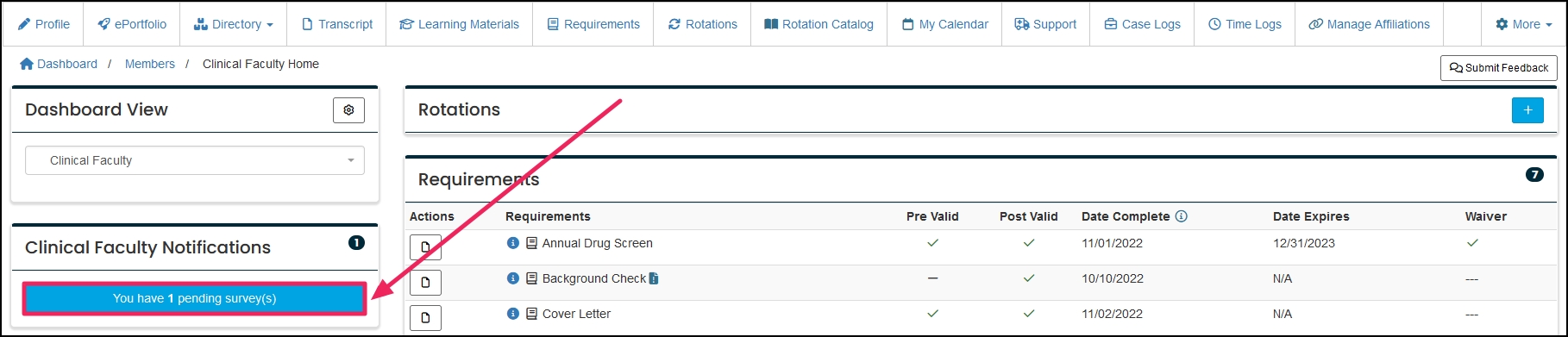
Step 1: Locate Your Survey Notification
If you are eligible to take a Survey, a notification will appear in the upper left section of your Home Page in the Notifications table. Click on the "You have 1 Pending Survey(s)" button to view your pending survey(s).
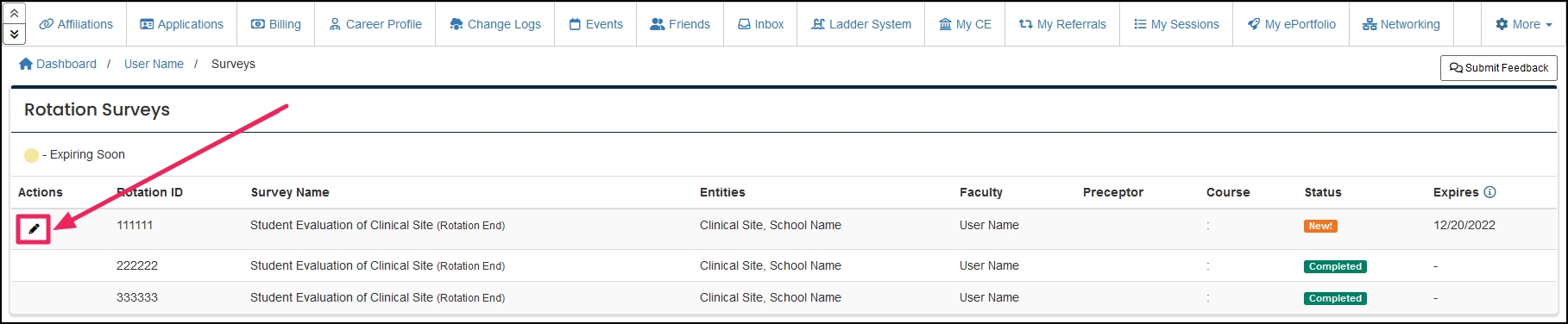
Step 2: Open the Survey
From your Surveys page, click the "Edit" (pencil icon) button to access the survey.
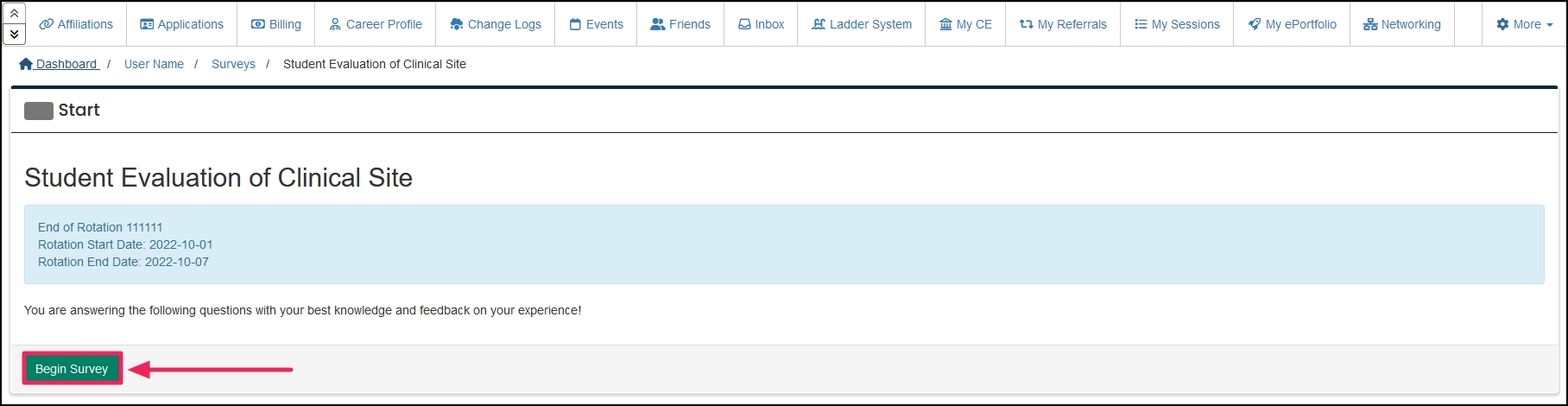
Step 3: Begin the Survey
Click "Begin Survey" to start taking the survey.
Step 4: Complete and Save Each Section
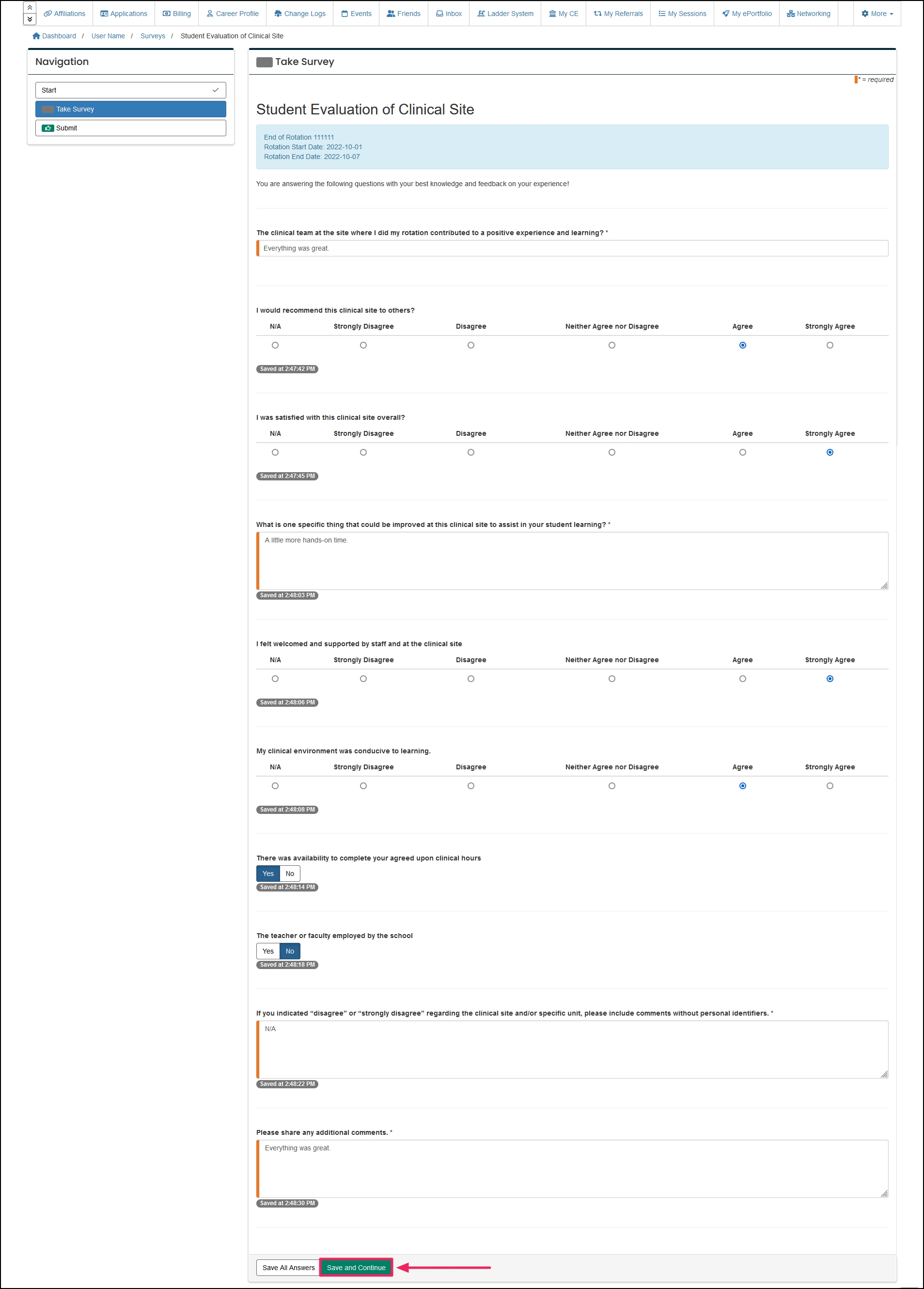
After answering the questions, click "Save and Continue" at the bottom to save your answers before moving on. Green checks will appear on each tab where you have successfully saved your responses.
NOTE: Anything with an Orange tab in the field are required fields.
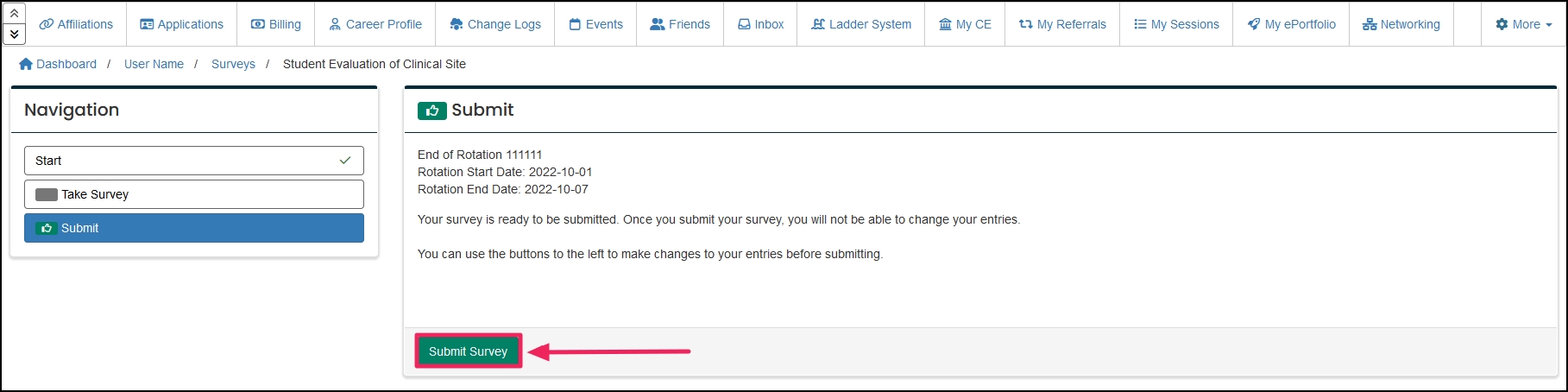
Step 5: Submit Your Completed Survey
To complete the survey and submit your answers, click the "Submit" tab in the Navigation table. Then click "Submit Survey" to submit your responses.
Note: Surveys, once received or opened, are active for 45 days. After 45 days, the survey will expire, and you won't be able to submit or edit your responses.