Article: Assessments: Review & Reset Attempts content
This guide explains how to reset a member’s assessment attempts in ACEMAPP. It walks you through locating the member, accessing their assessments, reviewing failed attempts, and safely deleting an attempt so the member can retry. This process is helpful when students or faculty have exhausted their allowed attempts and need another opportunity to complete required assessments.
Step 1: Navigate to the Manage Students (Affiliated) page
From your home screen, select the "Members" tab and choose the appropriate member type (Student, Clinical Faculty, etc.) under "Affiliation."
Note: For Clinical Site Users, select the member type under "Rotation."

Step 2: Open the Member’s Profile
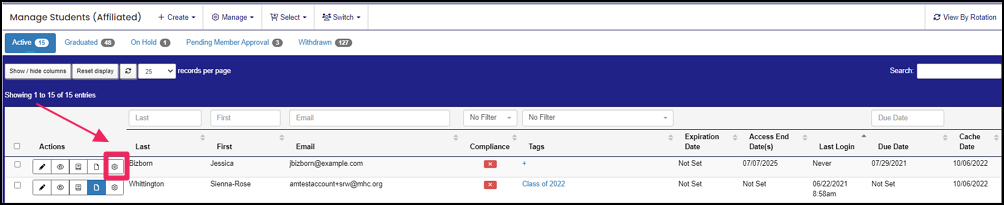
Locate the student's name. Click "Manage" next to the student.
Step 3: Access the Assessments Section
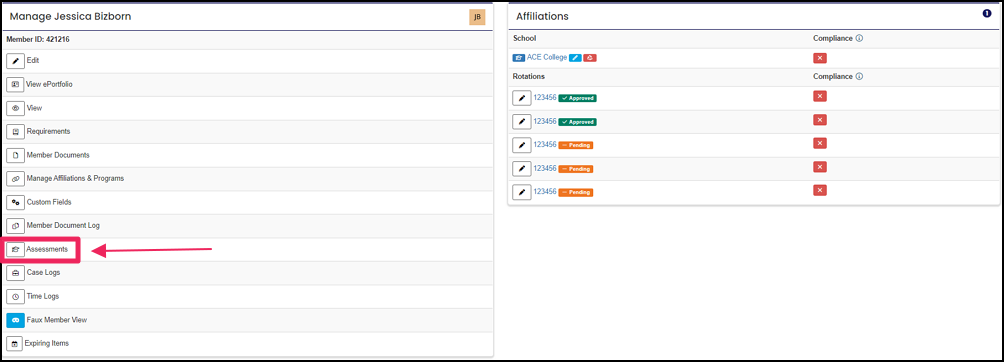
Click the "Assessments" icon to manage the member's assessments.
Step 4: View the Member’s LMS Materials
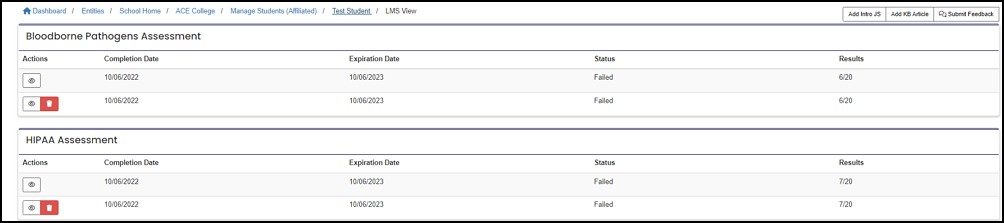
The "LMS View" page will show any Learning Materials the member has for your organization.
NOTE: For Clinical Site Users, while on the "LMS View" page, in the navigation panel, click on the "Rotation" button to access students connected by rotation.
Step 5: Delete the Failed Attempt
Review the failed attempt and confirm that it is the assessment you need to reset. Click "Delete" next to the failed attempt.

Step 6: Confirm the Deletion
Confirm that you want to delete that assessment attempt.

Note: This will permanently delete the attempt from the system. Once the attempt has been deleted from the system, it cannot be recovered.
An Affiliation is a connection between a Member and an Entity.
Affiliations define Member Types and often include Graduation or End Dates.
A rotation is a scheduled clinical experience.
The Profile allows you to enter and edit personal information in ACEMAPP.
A rotation is a scheduled clinical experience.
