Article: Profile Photo Upload content
Upload a Profile Photo
Step 1: Access Your Profile
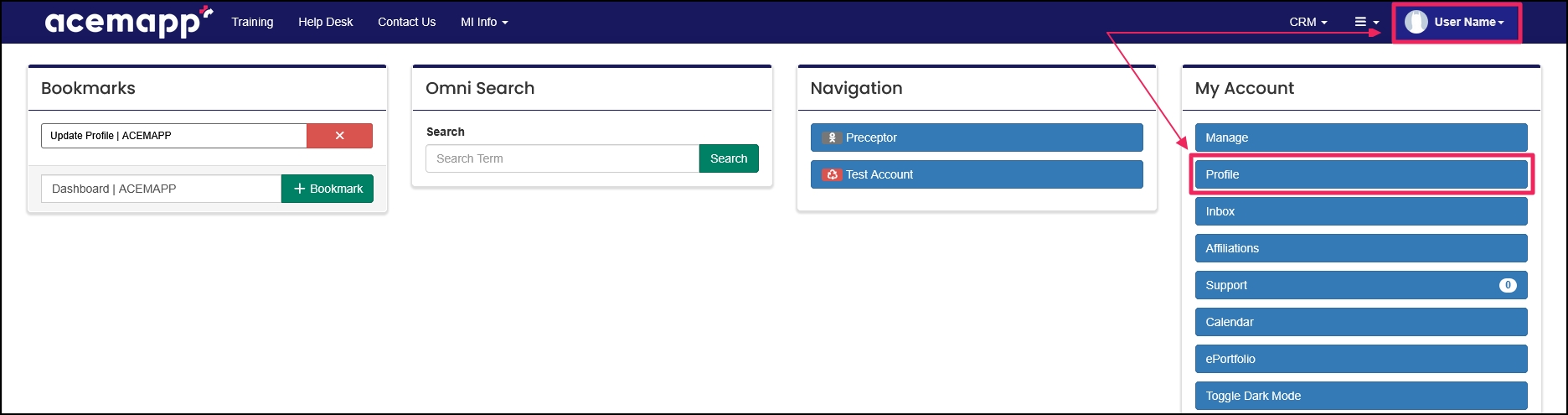
To upload a profile photo, click on your name in the upper-right corner of your ACEMAPP screen. Then, click "Profile".
Step 2: Open the Photo Section
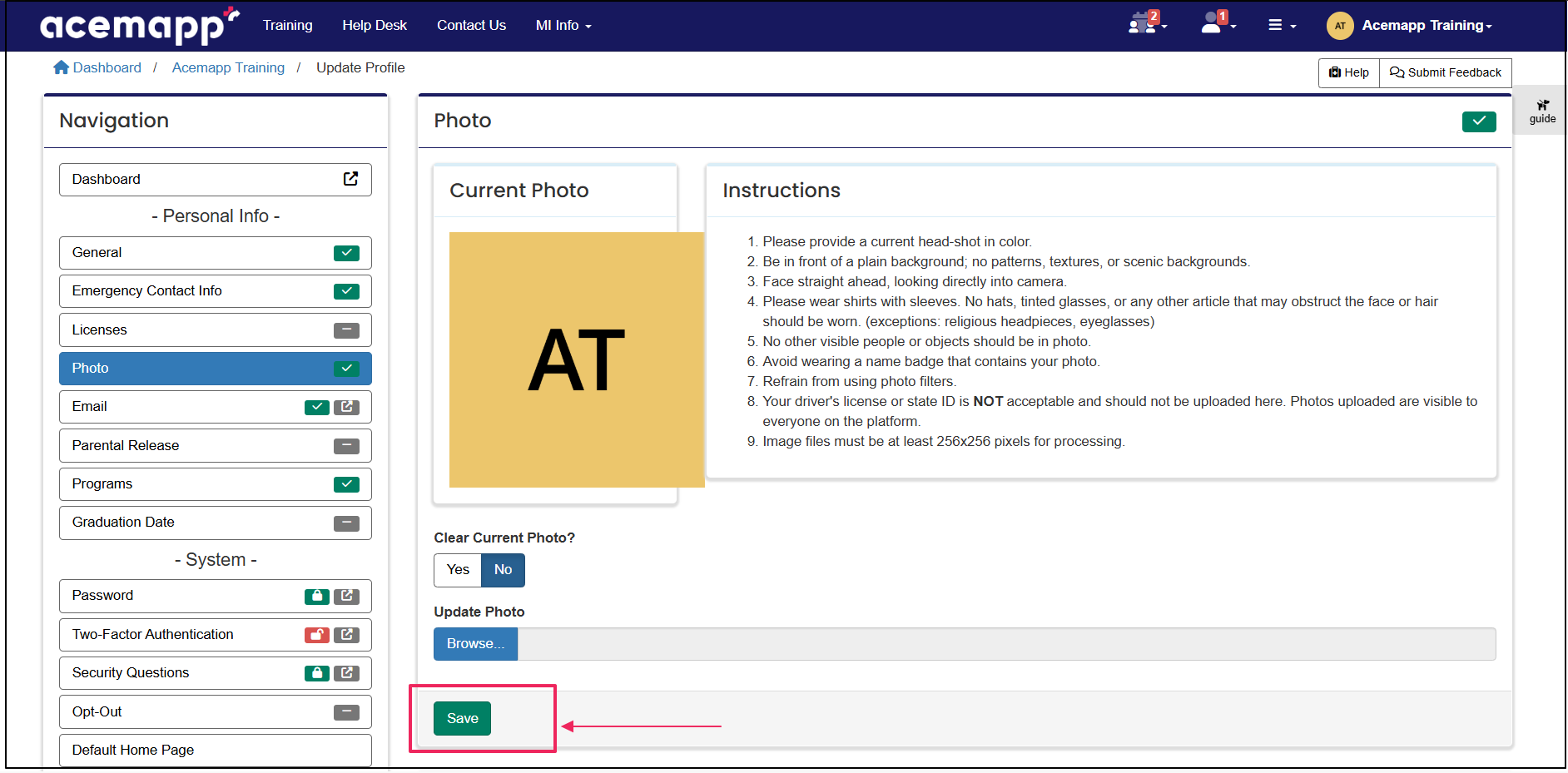
From the Navigation panel on the left side of the screen, click the "Photo" button.
Step 3: Select Your Photo
Click "Browse" to select your photo for upload.
Step 4: Save Your Photo
Once your photo has been uploaded, click "Save".
##iPhone Users: Preparing Photos for ACEMAPP
Update Phone Settings
Attention iPhone users, iPhone saves photos in a format that may be incompatible with ACEMAPP. To convert the image to a jpg please follow the steps below:
- Go to Settings and tap "Camera."
- Tap "Formats" and choose "Most Compatible."
Photo's will now save in a jpeg format.
Copy & Paste Method for Existing Photos
By copying photos from your Photo's app to the Files app, the pictures can be saved as a JPEG file.
- Go to the photos app and select the picture you want to convert.
- Tap the "Share" icon and select "Copy Photos."
- Go to the Files app and tap "Browse" and select "On My iPhone."
- Press and Hold any part of the blank area and tap "Paste."
The image will paste as a Saved JPEG image on your phone.
The Profile allows you to enter and edit personal information in ACEMAPP.
The Profile allows you to enter and edit personal information in ACEMAPP.
The Profile allows you to enter and edit personal information in ACEMAPP.
