Article: Evaluation Member List content
School and clinical site coordinators can use the Evaluation Member List to view evaluations and evaluation statuses of their members (students, faculty, etc.). This guide walks you through how to view and manage evaluations for your members.
Note: If the Evaluations feature is not enabled for your school/clinical site, but you would like it set up for your entity, please submit your request to ACEMAPP support.
Step 1: Access the Evaluations table
To access your Evaluations table, click the "Evaluations" button from the main navigation bar on your homepage.
- Depending on your screen size, you may need to click the "More" dropdown menu to access the "Evaluations" button.
Step 2: Locate the Evaluation
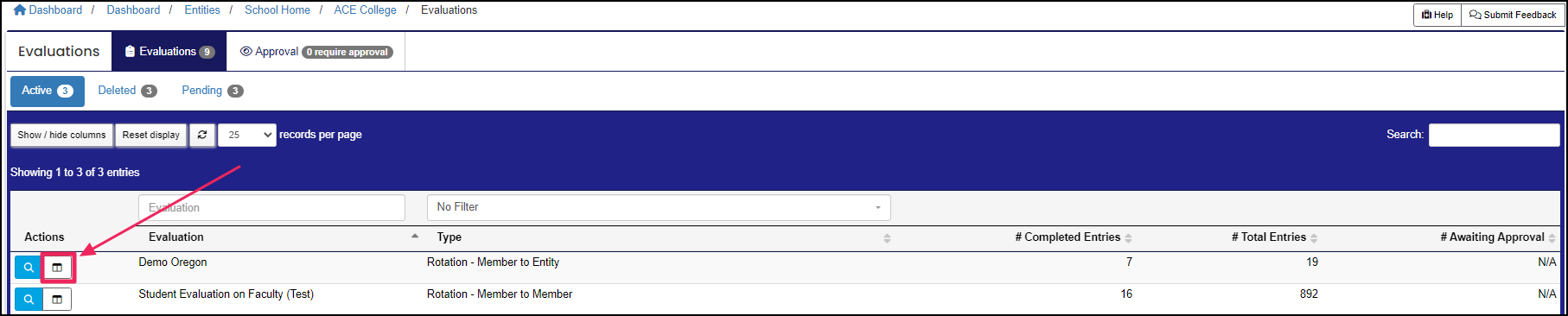
In your Evaluations table, locate the evaluation you want to view/manage and click the "Reports" button under the Actions column.
Step 3: Click the Evaluation Member List
Navigate to the bottom left of the evaluation page and click the "Member List" button. This will take you to your Member List table.
Step 4: View the Evaluation Statuses
The top of your Member List table is broken into different tabs that represent the following evaluation statuses:
- Pending - the member has not yet started the evaluation
- Active - the evaluation is currently in progress
- Completed - the member has completed the evaluation
- Expired - the evaluation has expired, and the member did not complete the evaluation
In your Member List table, you can view the date the evaluation was sent and other specific details about the evaluation.
Step 5: View and Manage Evaluations
You can view and manage evaluations in your Member List table by clicking the following under the Actions column:
- The "View" (Eye icon) to view an evaluation.
- The "View PDF" (Document icon) to download a PDF of the evaluation, including any signatures and comments.
- The "Comments" (Speech bubble icon) to view evaluation comments.
- The "Committee Signatures" (List icon) to view the signatures of committee members.
- The "Reset" (Arrows icon) to resend an evaluation. Evaluations that have been reset will be available to the member again the day after they are reset.
- The "Delete" (Trash can icon) to remove an evaluation.
Note: The Comments and Committee Signatures features are only enabled by request during evaluation setup.
An Entity is a School, Clinical Site, High School, Company, etc.
