Article: Evaluation Results Report Page content
Once your members have completed an evaluation, you can review their answers and pull individual and aggregate reports.
Step 1: Navigate to the Evaluations Tab
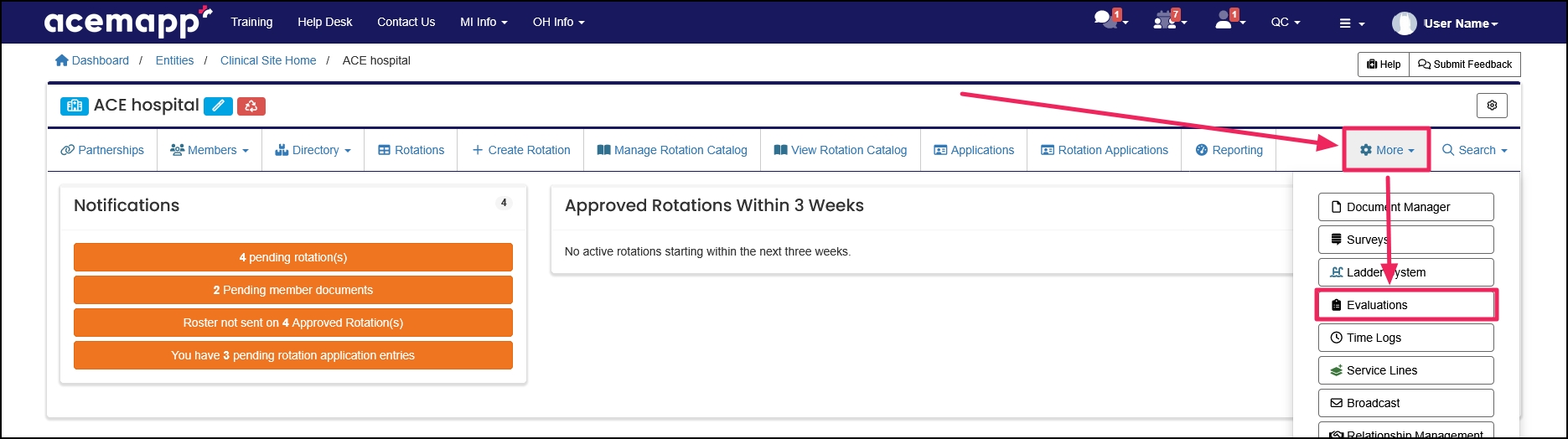
From your home page, click the "Evaluations" tab. Depending on your browser, you may need to look under the "More" tab to find "Evaluations" from the drop-down.
Step 2: Open the Reports for a Specific Evaluation
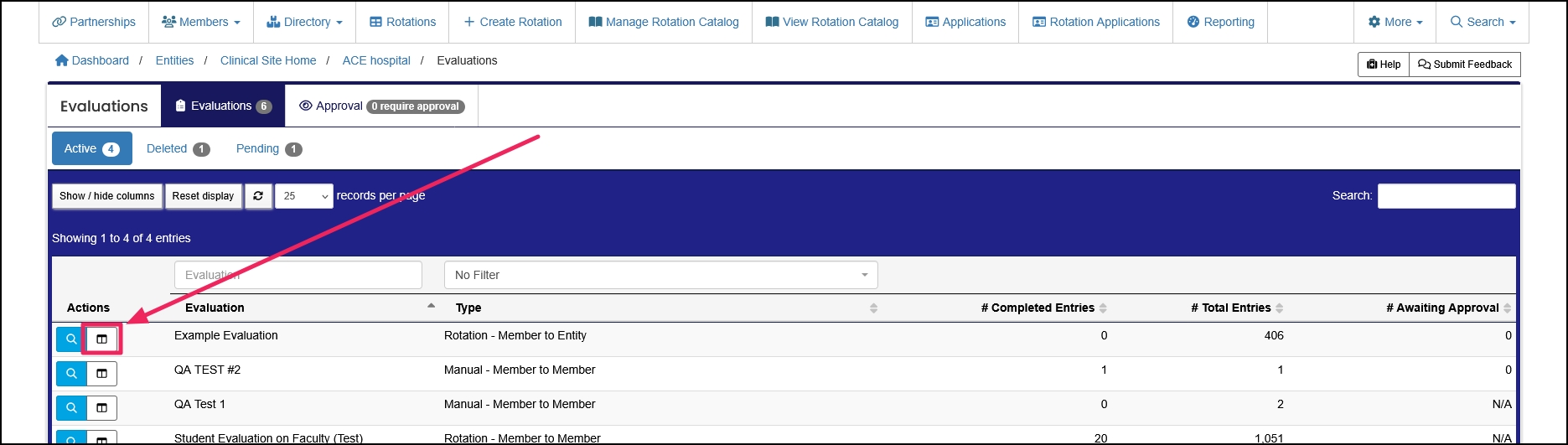
Locate the evaluation you would like to report on and click the "Reports" button.
Step 3: Select the Results Report
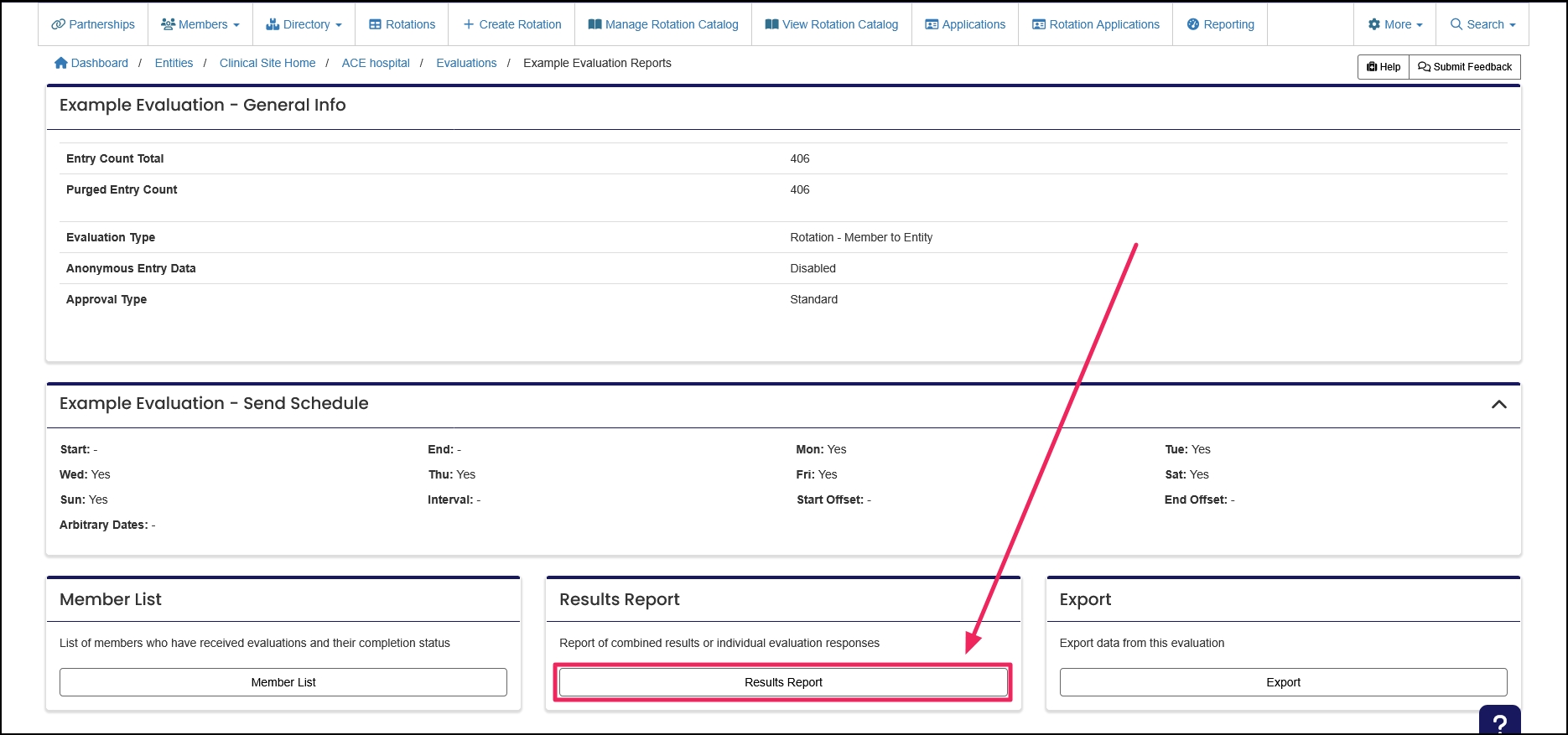
At the bottom of the page, select "Results Report."
Step 4: Choose a Report Mode
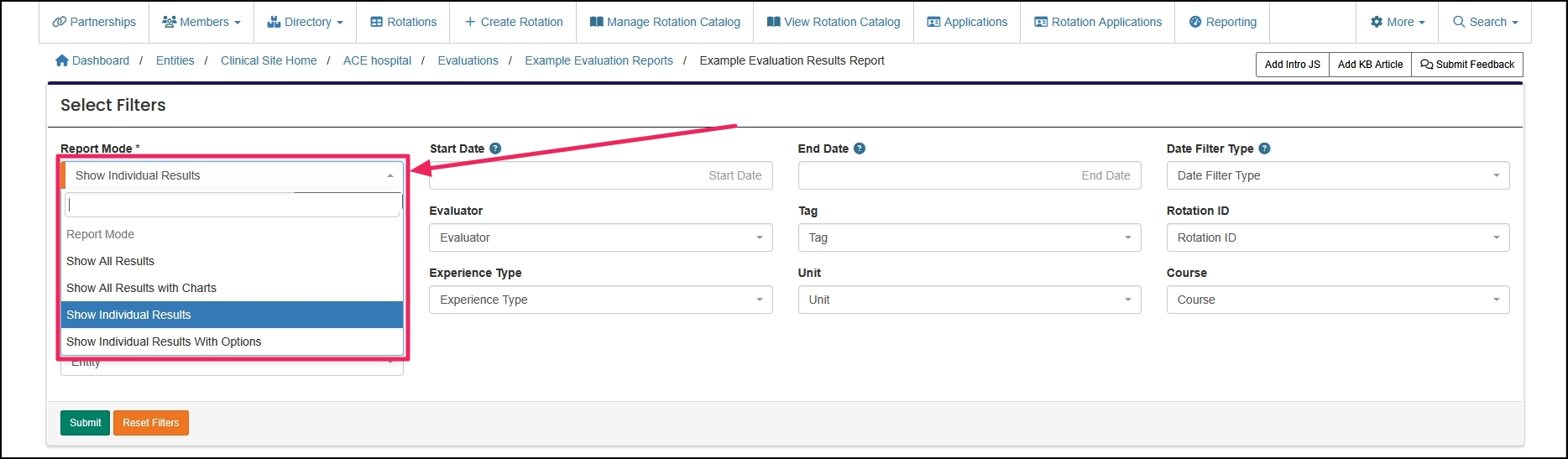
Choose a "Report Mode." Showing all results will provide aggregate data. Showing individual results will show answers for one submission.
Step 5: Apply Filters
Apply additional filters to narrow your results. Then, click "Submit."
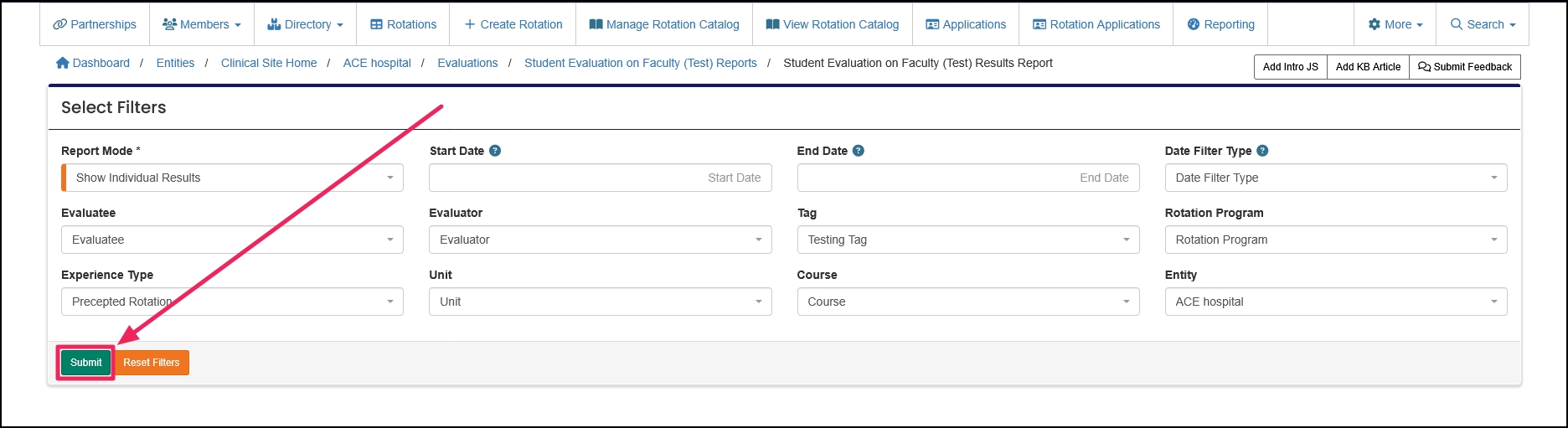
Note: When viewing individual results, use the "Prev" and "Next" buttons to move through the list of individual evaluation results.
Step 6: Review Comments and Signatures
When the report mode is set to "Show Individual Results" or "Show Individual Results with Options," the five most recent comments left on the evaluation by the evaluator, evaluatee, and any committee member(s) will appear. Click "View All Comments" to access the full comment list.
If there are evaluation committee members, click "View Committee Signatures" to review which have signed the evaluation.
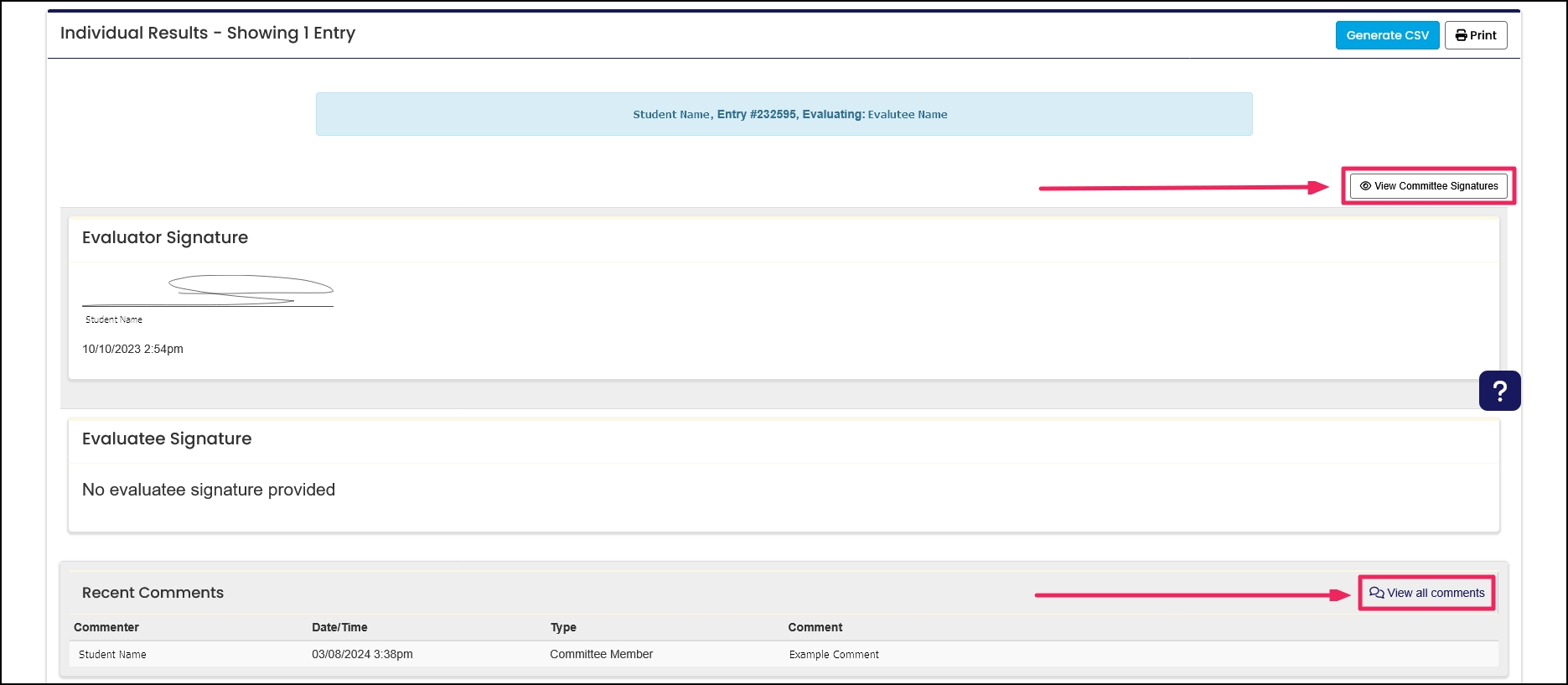
Note: Comments are enabled during evaluation setup. Some evaluations may not allow comments.
