Article: Advanced Course Setup - Configuration View content
Courses can have their own set of requirements attached to them. To view how your courses are set up, go to the "Edit Course" page and see all the attached requirements and how they affect compliance.
Step 1: Access the Courses Screen
From your Home Page, click the "Courses" button in the navigation bar to open the "Courses" screen.
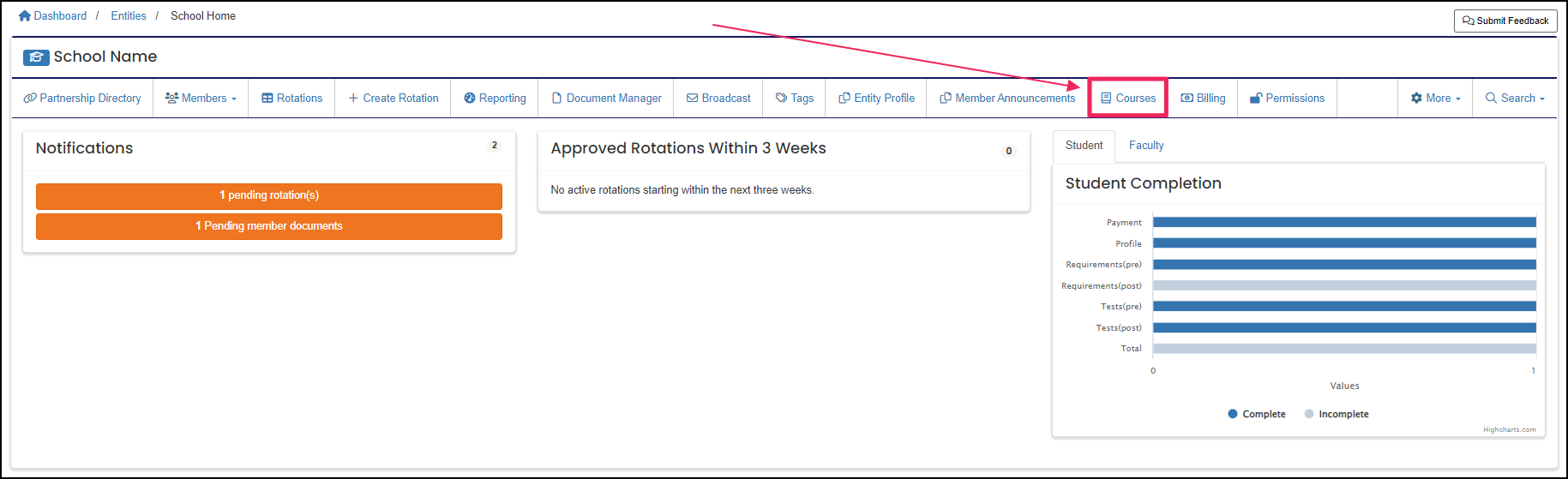
NOTE: The Courses feature is optional in ACEMAPP. Your organization needs to use Courses to view this page.
Step 2: Open the Edit Course Page
On the Course you would like to review, click the "Edit" (pencil icon) button to open the Edit Course page.
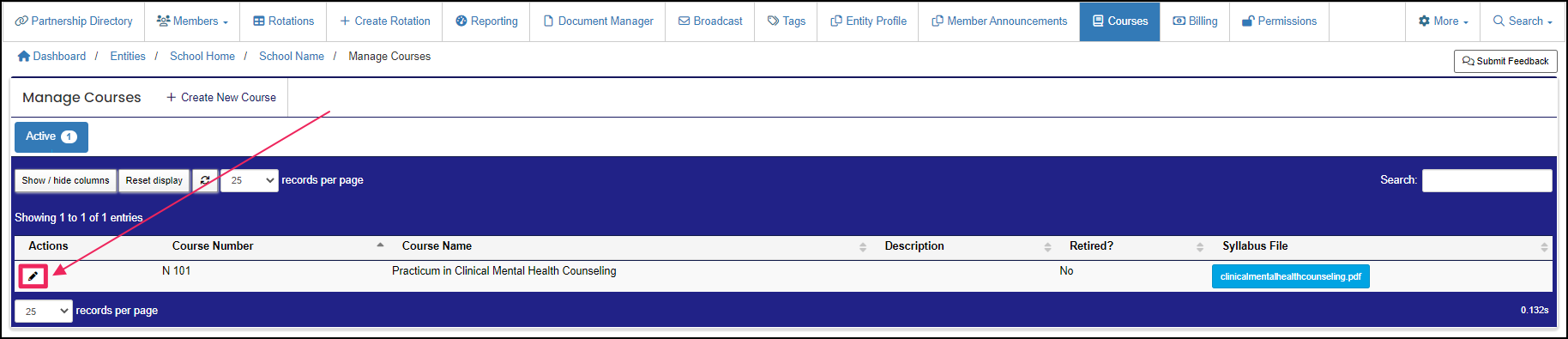
Step 3: Review Attached Requirements
In the Navigation panel, click the attached requirement to review. If a requirement, module, assessment, etc., is attached, a number next to it shows how many unique items are attached.
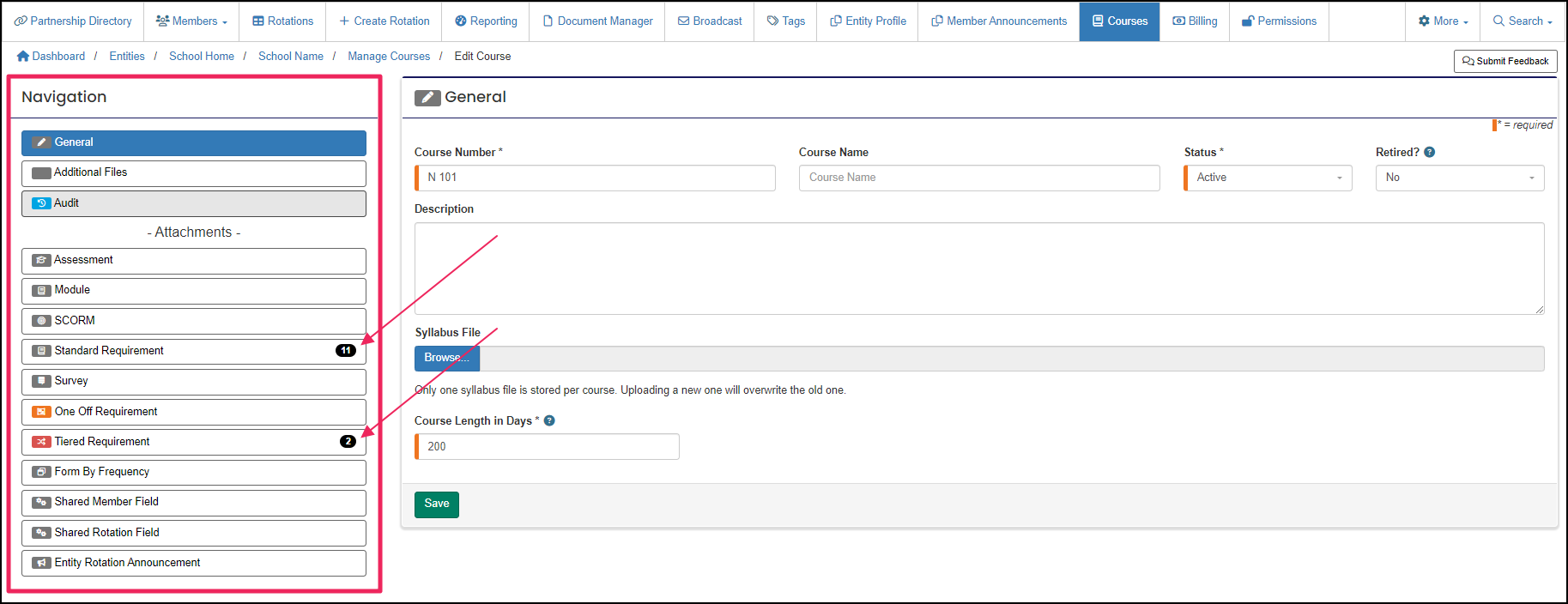
A requirement is an item a member may need to complete based on their affiliation to an entity or rotation assignment.
