Article: Forums content
Connect with your peers online using ACEMAPP Forums. View topics that interest you, read what other people are saying, or start a new discussion thread.
Creating a Thread
Step 1: Navigate to the Forums Page
After logging into your ACEMAPP account, click the three horizontal lines drop-down to the left of your name in the navigation bar and select the "Forums" button.

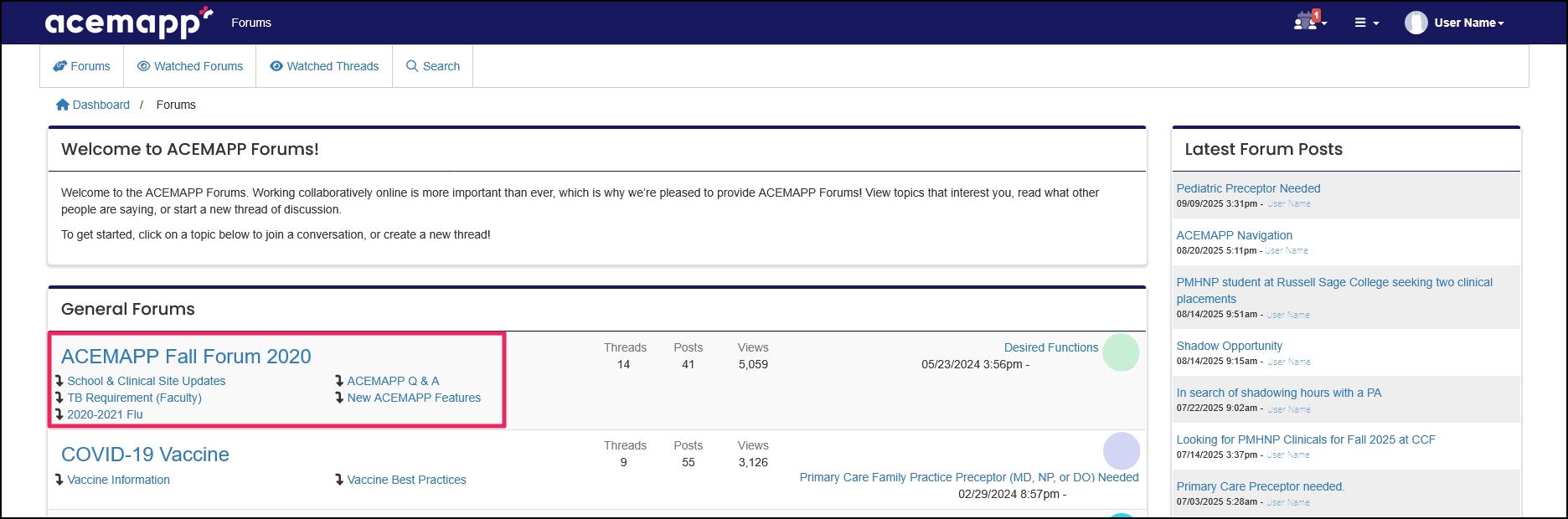
Step 2: Select a Forum or Sub-Forum
Click the "Forum" or "Sub-forum" you would like to create a thread in.
Step 3: Start a New Thread
Click "New Thread" to open the New Thread screen.

Step 4: Compose and Save Your Thread
Include the Thread Name and Body of your message and click "Save."

Adding a Post
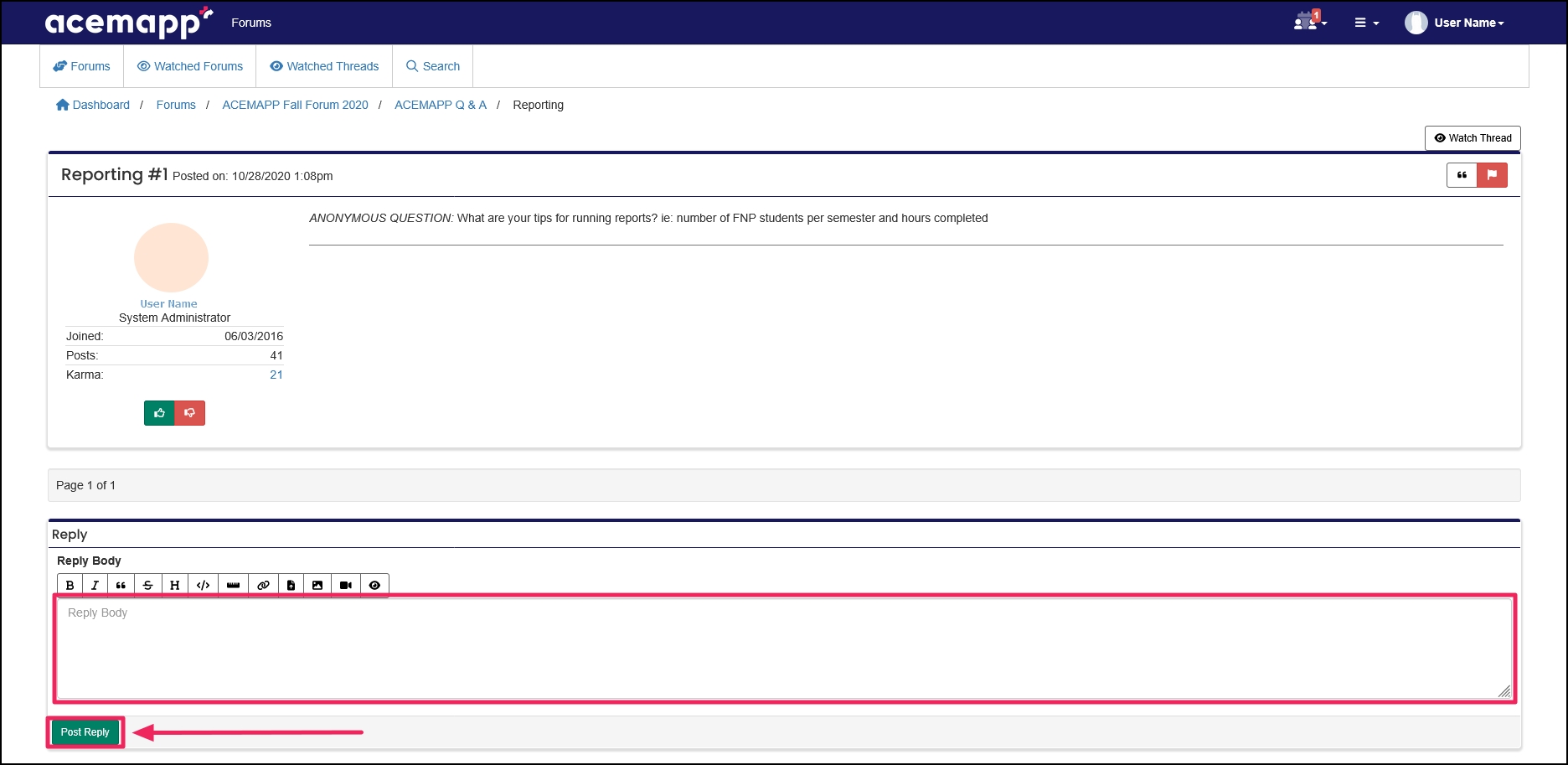
Inside the Thread that you would like to post in, scroll to the bottom, type your Reply, and click "Post Reply" to add your post to the thread.
Editing Threads/Posts
Step 1: Open the Item You Want to Edit
Inside the Thread or Post that you would like to edit, click the "Edit" (pencil icon) button inside the thread box.

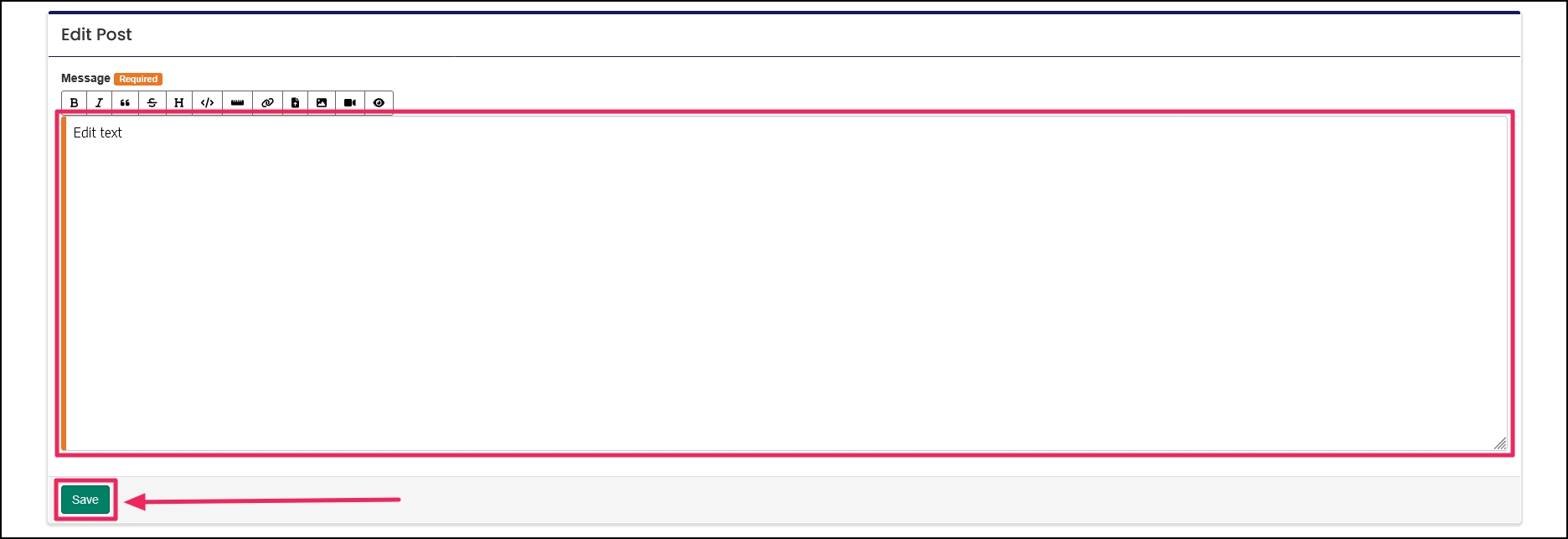
Step 2: Update Your Content
Edit your message and click "Save."
Step 3: Edit Thread/Post Titles
To edit the name of aThread or Post, click on the "Edit" (pencil icon) button.

Step 4: Save the Updated Title
Create a name, then click "Save."

Watching Forums/Threads
Step 1: Watch an Entire Forum
Click on the Forum that you would like to follow and select "Watch Forum."

Step 2: Watch a Specific Thread
Click on the Thread that you would like to follow and select "Watch Thread."
When a new post is created in the thread, you will receive a notification by email.

Step 3: View Watched Content
From any page in Forums, to view the Threads and Forums you are watching, click "Watched Forums" or "Watched Threads" at the top of the page.

Reporting a Post
Step 1: Select the Report Option
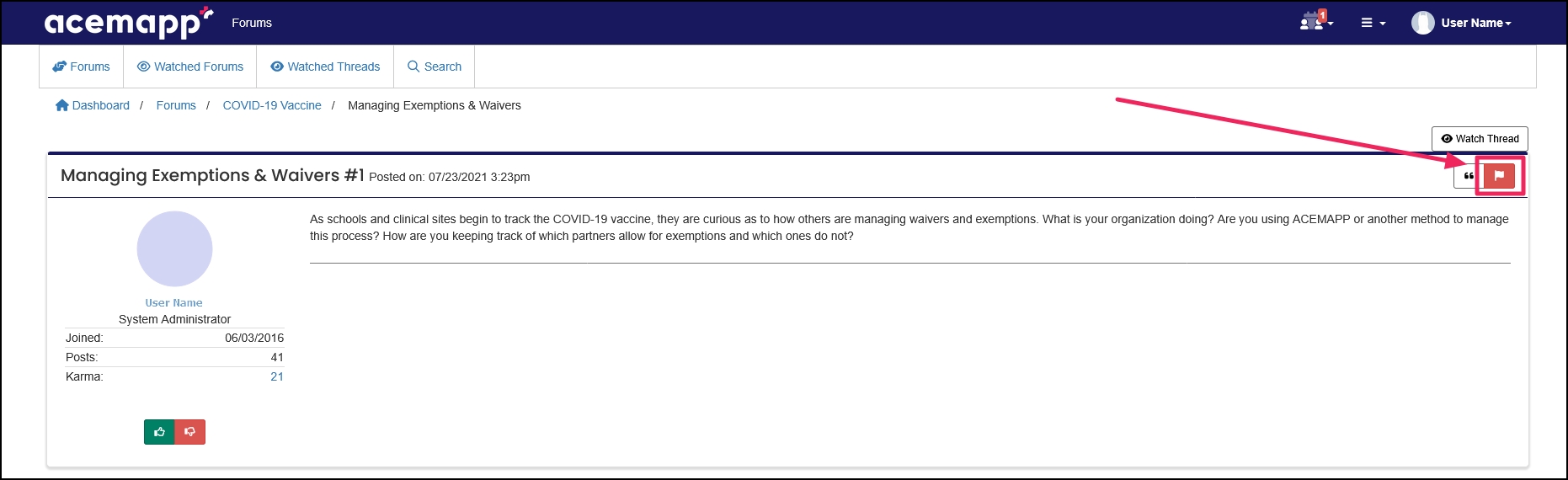
If you feel the need to report a post, click the "Report Post" (red flag icon) button in the post.
Step 2: Provide Details
Explain why the post should be reported and click "Save."
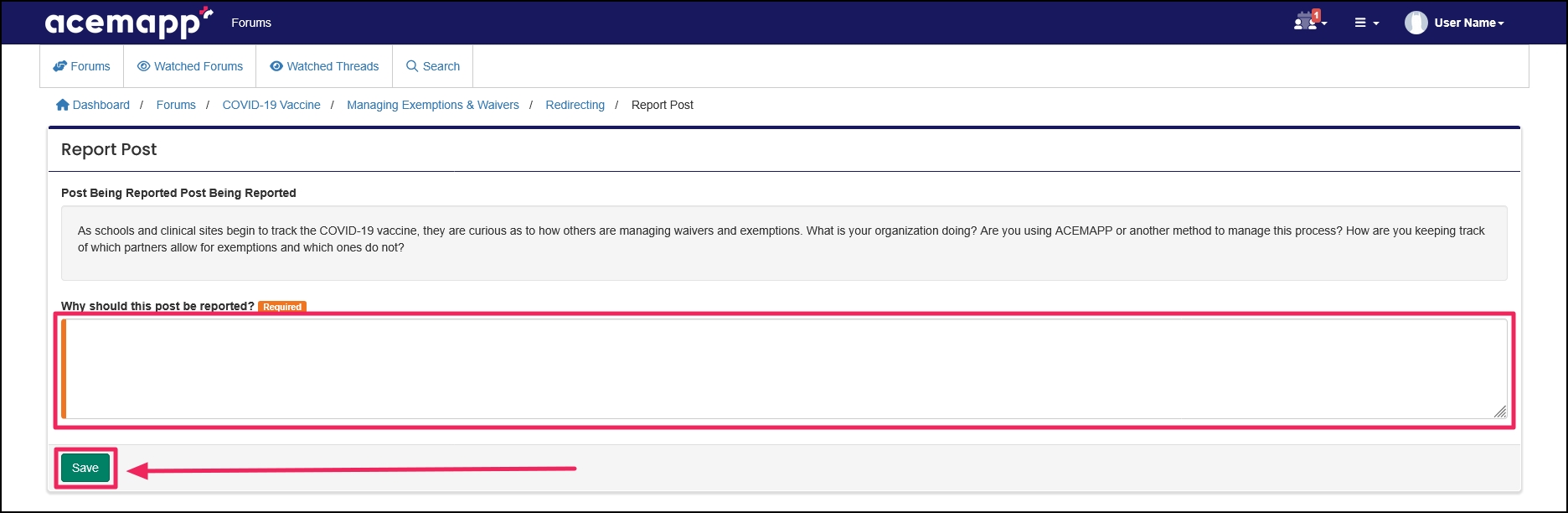
Step 3: Administrator Review
ACEMAPP administrators will review the post/report and take the necessary steps.
Delete Your Post
Step 1: Choose the Delete Option
If you need to delete your post, click the "Delete" (red trash bin icon) button in the post.
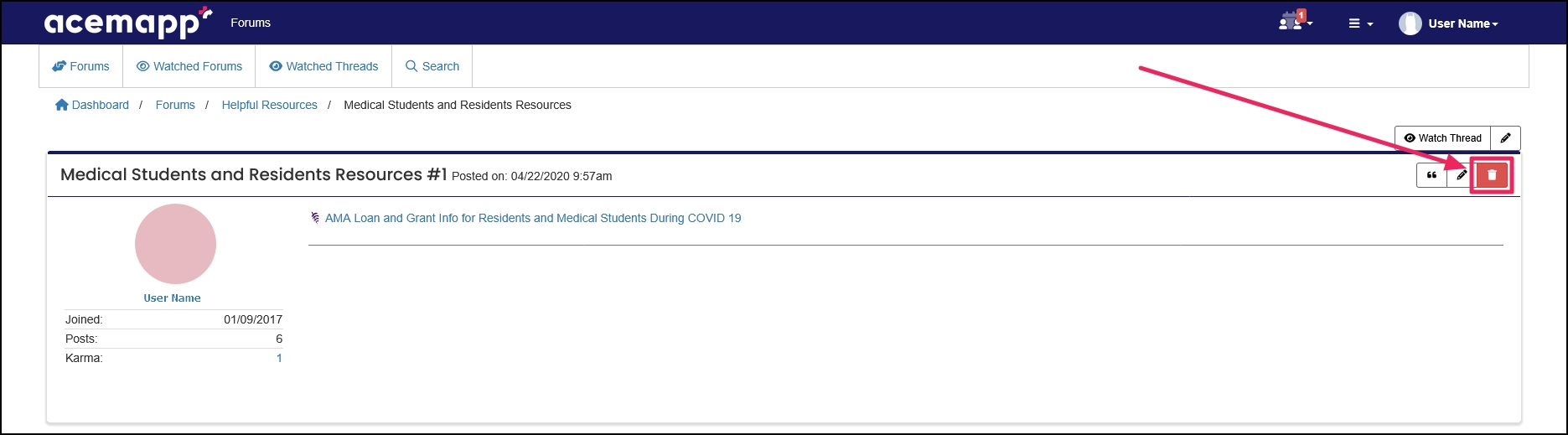
Step 2: Confirm Deletion
Click the "Delete" button.

Step 3: Finalize Removal
Click the "OK" button to confirm deleting your post.
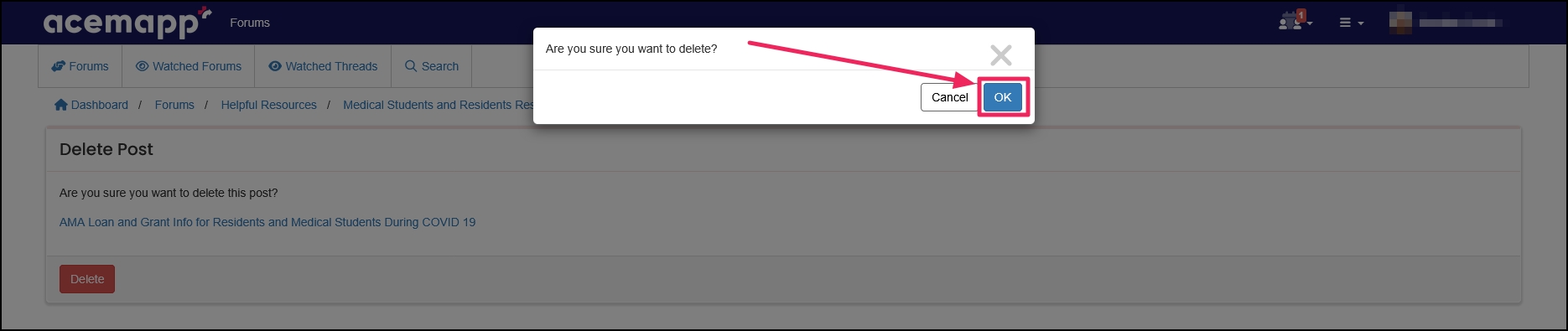
Creating Your Forum Signature
Step 1: Open Your Forum Profile
To create your Forum Signature, while in Forums, click on your "Name" and select " Forum Profile" from the drop-down.
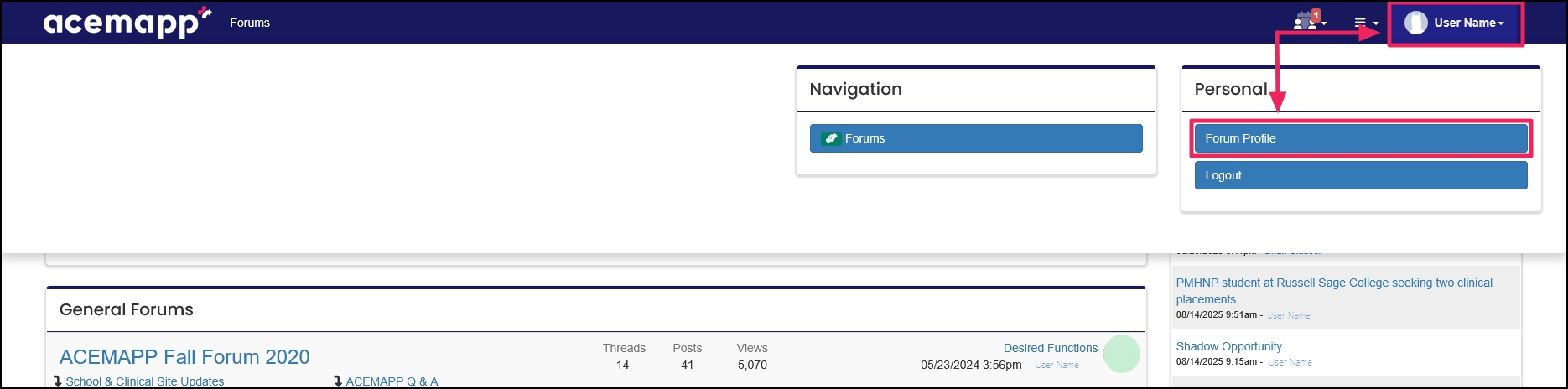
Step 2: Add and Save Your Signature
Add your Signature, image, or video using the toolbar and click "Save."
Your new signature will appear in any Thread or Post you create.

The Profile allows you to enter and edit personal information in ACEMAPP.
The Profile allows you to enter and edit personal information in ACEMAPP.
