Article: Structured Forms on Demand: Members content
Your organization may send a Structured Form for you to complete for data and record purposes relating to a specific rotation. This form does not affect compliance.
To Submit Your Forms
Step 1:
From your home page, click the "Rotations" tab.

Step 2:
Click the "Structured Forms On Demand" icon under the "Actions" column.
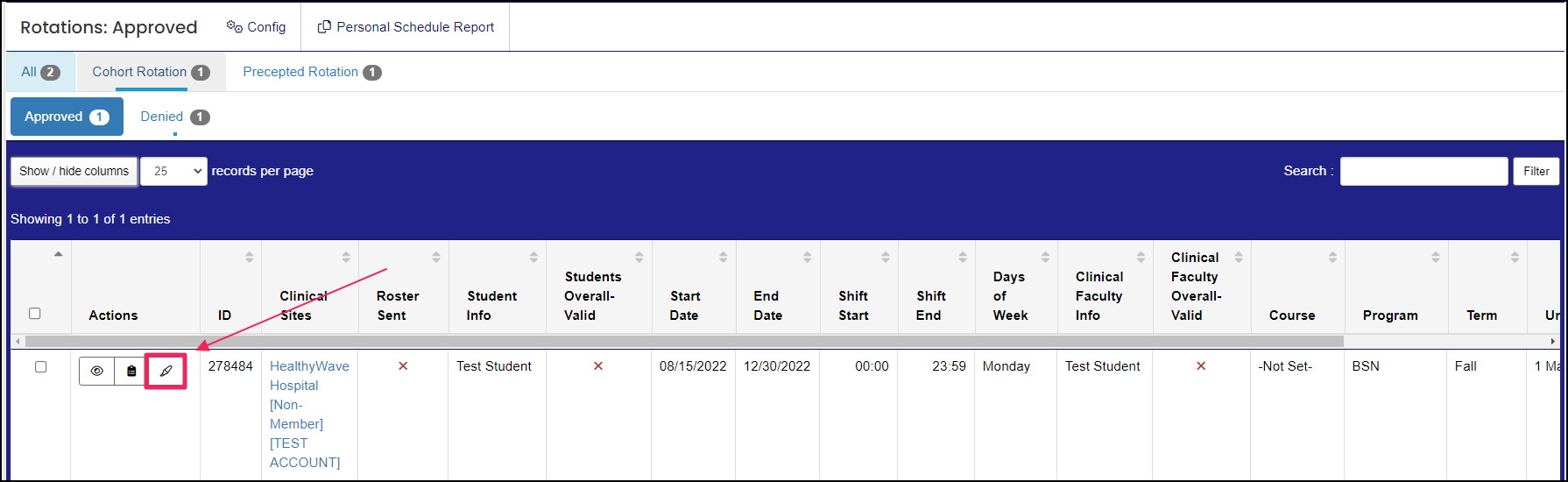
Step 3:
Select the Structured Form and Target from the drop-down and click "Save."
Step 4:
Click "Begin Entry."
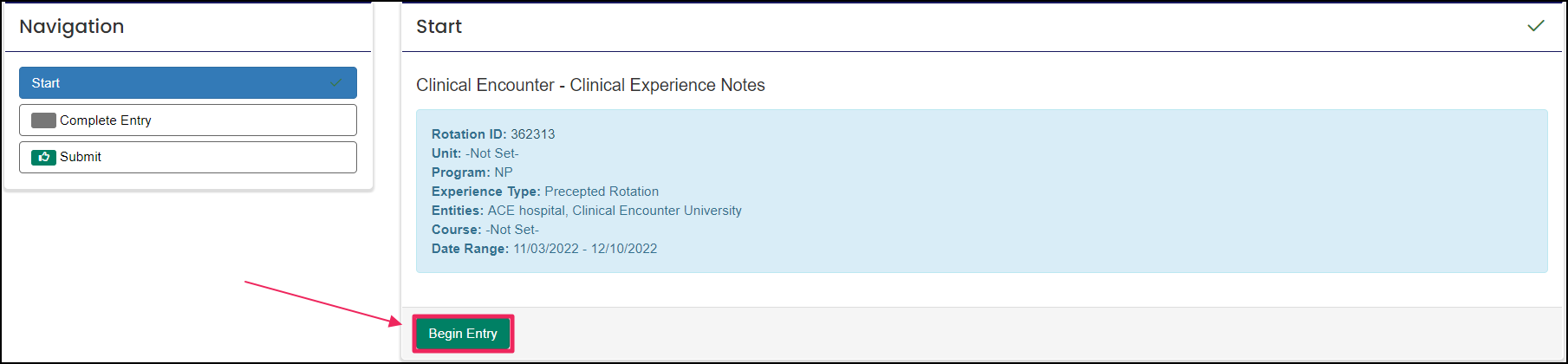
Step 5:
"Complete Entry" by completing the required fields.
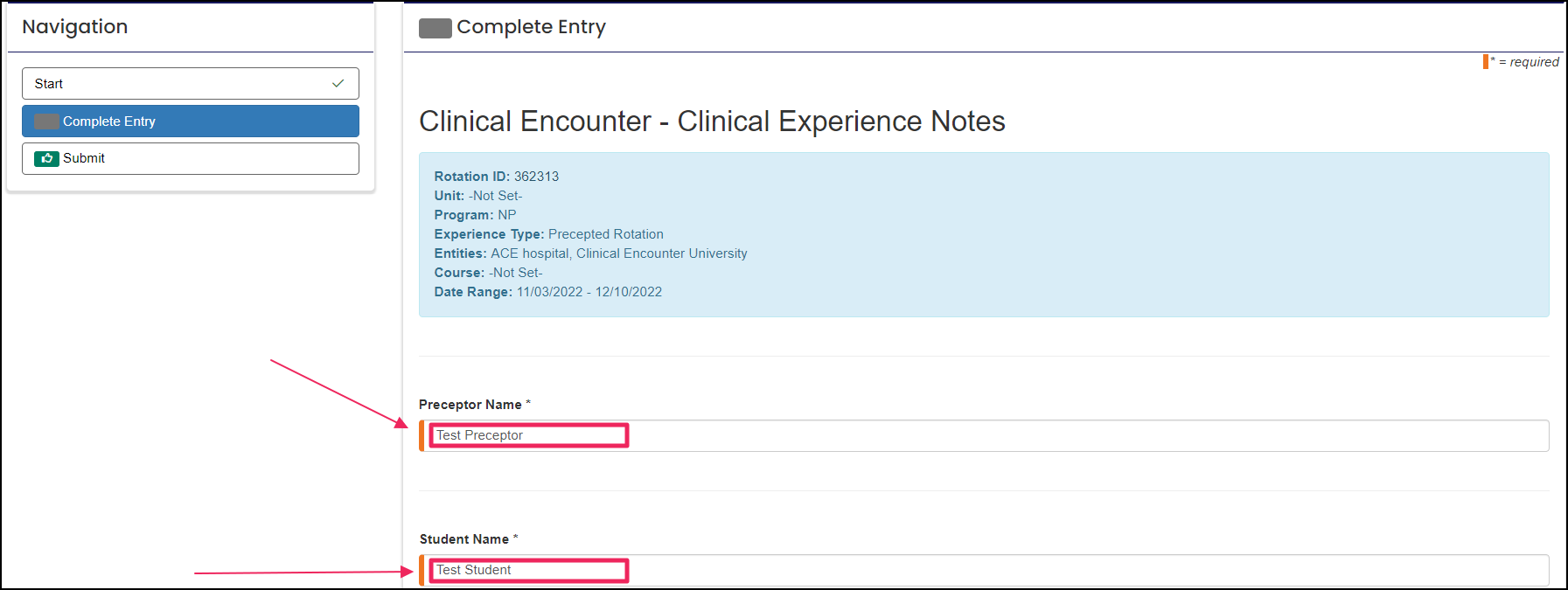
Then, click "Save All Answers" or "Save and Continue."
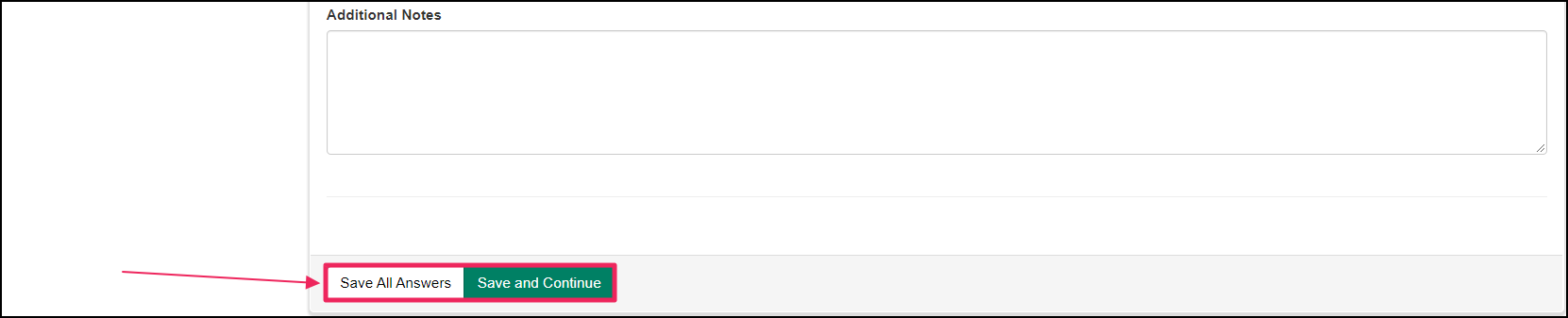
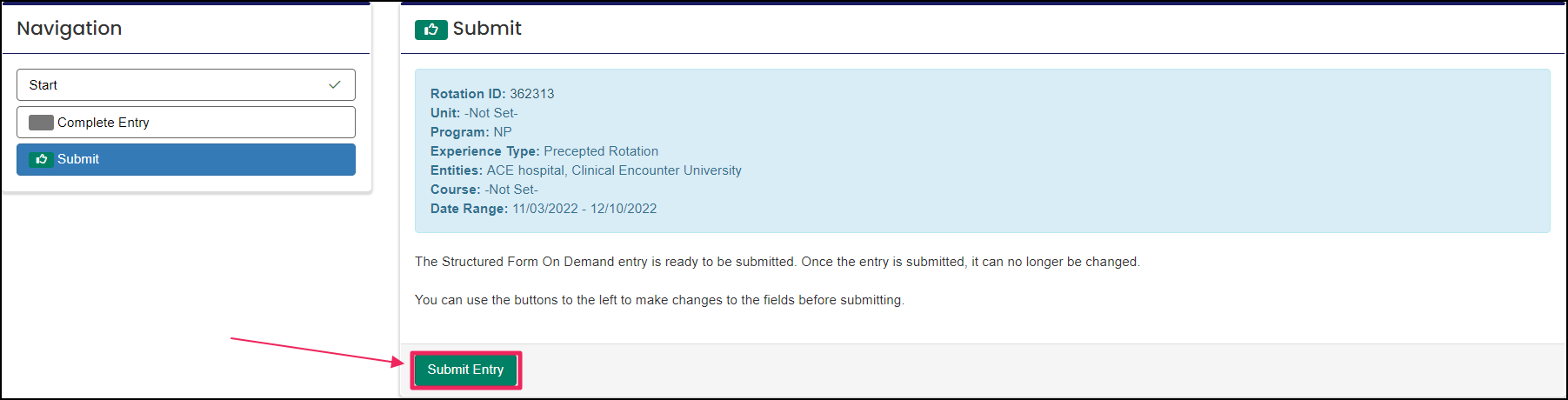
Step 6:
Click "Submit Entry."
To Access Your Forms
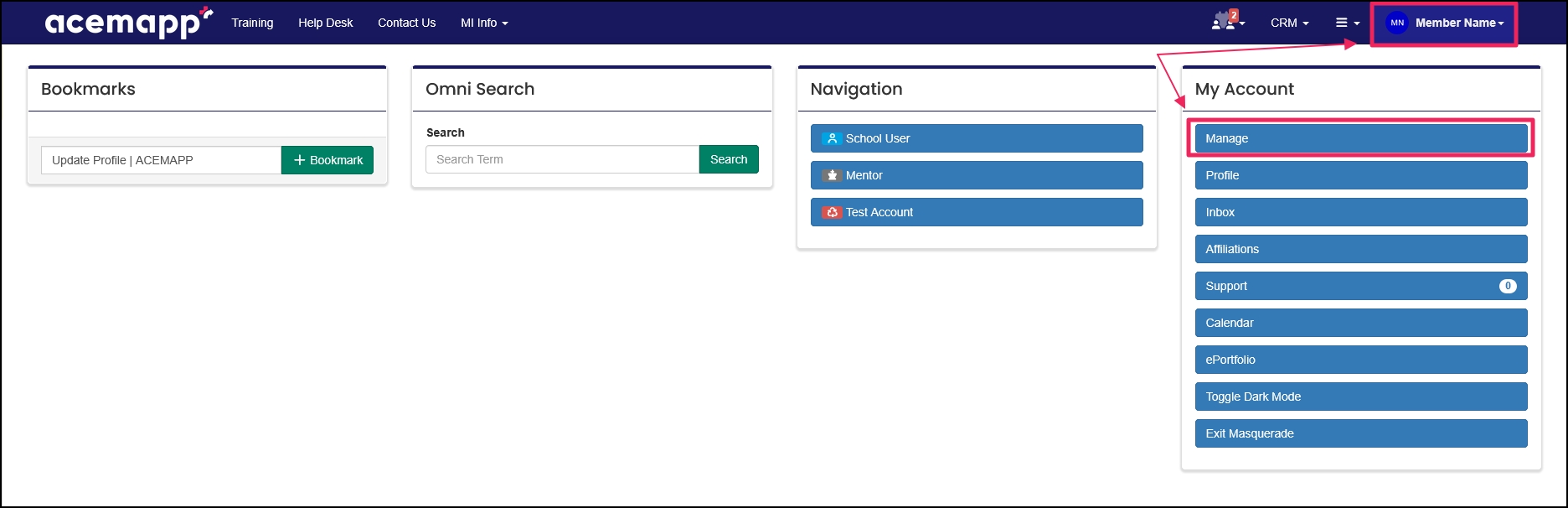
Step 1: Open Manage Account Settings
Click on your Your Name in the upper-right corner of your screen, then select "Manage" in the Personal drop-down.
Step 2: Open Structured Forms On Demand
On the Manage page, click the "Structured Forms on Demand" button.
On the Structured Forms On Demand Entries page, you can view and manage any available Structured Forms.
To Create an Entry
Step 1: Start a New Entry
While on the Structured Forms On-Demand Entries, click on the "Create New Entry" button.
Step 2: Select Form and Target
For the "Structured Form On Demand" field, select the form by selecting the name of the form in the dropdown. For the "Target" field, enter the Rotation ID number or Entity name you wish to complete the form for.
NOTE: If you select a "Rotation" type form, enter the rotation ID for the "Target" field. If you select a "General" type form, enter the entity name.
Step 3: Save the Entry
Click the "Save" button.

Step 4: Fill Out and Submit the Form
Fill in the form, answer all Required fields, and click "Submit" when complete.
The completion of all required items in ACEMAPP.
A rotation is a scheduled clinical experience.
A rotation is a scheduled clinical experience.
