Article: Rotation Conflict Checker content
School and clinical site coordinators can check for scheduling conflicts with other rotations using the Conflict Checker feature. This guide will walk you through how to use the Conflict Checker on rotations.
Step 1: Access the Rotations Table
To access your Rotations table, click the "Rotations" button from the main navigation bar on your homepage.

Step 2: Select the Rotation to Check
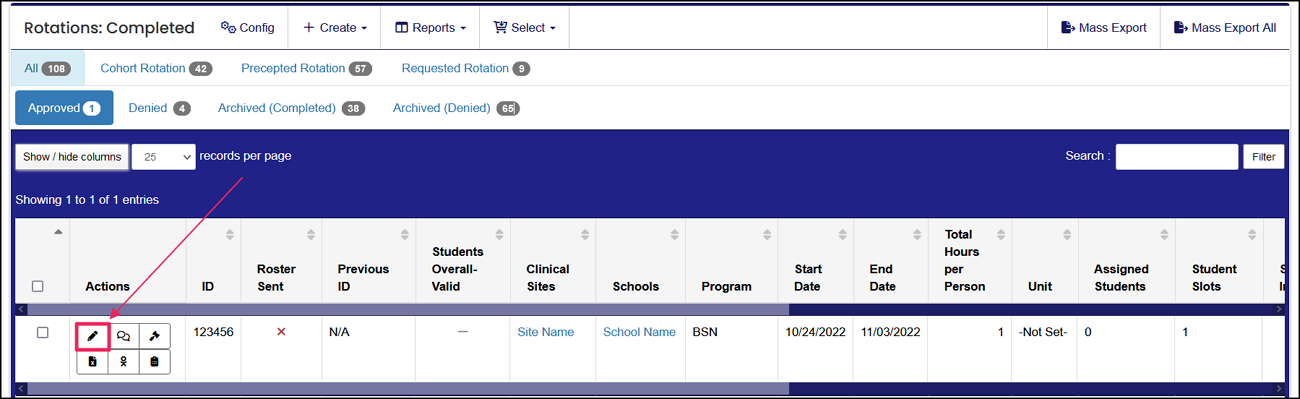
In your Rotations table, click the "Edit" (Pencil icon) under the Actions column next to the rotation you want to check for conflicts.
This will take you to the rotation request form.
Step 3: Open the Conflicts Tab
On the rotation request form, click the "Conflicts" tab at the top.
-
The Conflicts tab displays any conflicting rotation requests based on the following rotation fields:
-
Unit
-
Start and End Dates
-
Shift Start and End Times
-
Days of the Week
-
-
The Conflicts tab displays the following sections:
-
The Conflict Checker section lists all rotation scheduling conflicts.
-
The Checked Against section lists the dates that were used to search for conflicts.
-
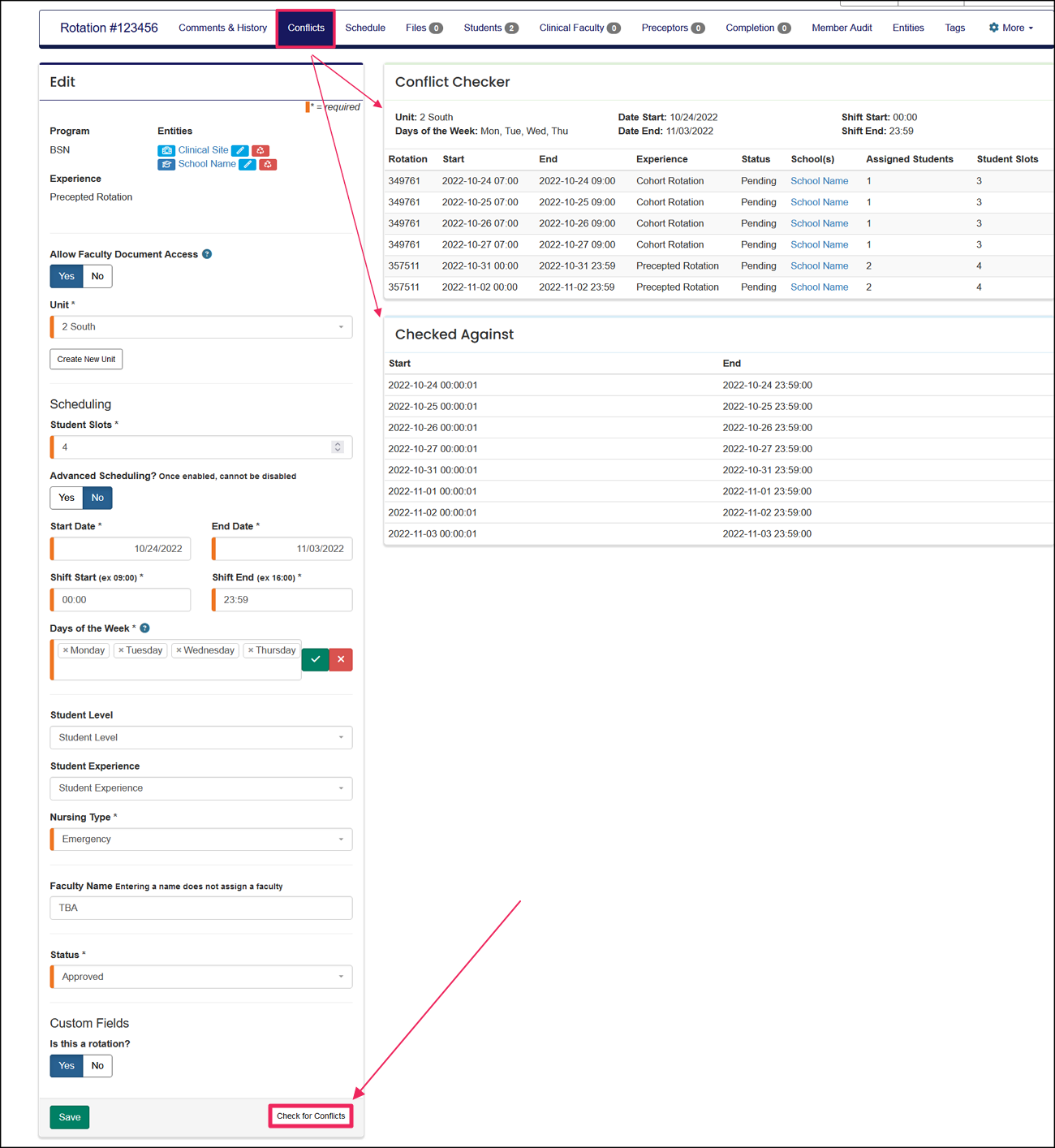
You can also check for scheduling conflicts by clicking the "Check for Conflicts" button at the bottom right of the rotation request form, which will direct you to the Conflicts tab.
If you make updates to the rotation request form, the Conflict Checker automatically updates to reflect the latest information.
If permitted by the clinical site, school coordinators can use ACEMAPP's Advanced Scheduling feature to provide additional details on the exact days and times of a rotation.
A rotation is a scheduled clinical experience.
A rotation is a scheduled clinical experience.
A rotation is a scheduled clinical experience.
A rotation is a scheduled clinical experience.
A rotation is a scheduled clinical experience.
